Navigation

Showing posts with label Inkjet Cartridges. Show all posts

Tuesday, May 13, 2014

Key Elements About HP’s PageWide Technology

Hewlett-Packard or simply HP has been one of the leading giants in printing technology since the day their business emerged in the industry. Back in 1998 they astounded everyone in the field of printer technology with such great development. They were able to develop a disposable print head that comes built-in into the cartridges, particularly their supplies.The value of this breakthrough is phenomenal, and truly it deserves credits. 

Key Elements About HP’s PageWide Technology
Unlike before, printer consumables have their print heads permanently installed into the cartridge itself. Thus, they tend to clog since the said component can’t be replaced resulting to output quality inconsistency. That is the just one of the few complications that the print industry had to deal with until HP developed the solution long ago.

Surprisingly, though not that much, HP once again took the position as the forefront in the development of a new breakthrough of print head design. Now widely known as PageWide technology, this totally amazing improvement first appeared in HP’s previous released of their company’s newest range of Officejet Pro X-series inkjet printers. The series includes – X451DN, X551DW, X476DN and X576DW. These four models use HP 970XL (black ink) and HP 971XL color ink cartridges as replacements.

According to the manufacturer, these are the key elements that you should know about PageWide technology:

  • A pagewide printhead has 10 HP Thermal inkjet chips called dies. Each die has 1,056 nozzles for each four colors. Thus, a single die has a total of 4,224 nozzles and 42,420 nozzles on the printhead.


  • Their newest formulated HP pigment inks particularly the black is expected to produce high-black optical density in just a single pass. While in general, inks in each cartridge can resist cross-contamination during storage, installation and printing process.


  •  In terms of speed, it literally made a few steps forward by offering new machines that are capable of high-speed printing at up to 70 pages per minute. These printers are not laser types or even associated with lasers though, yet they’re advanced enough to beat or even outperform one.


  •  The printheads are said to last until the lifetime of the machine.


  •  Aside that it can detect when the cartridge is running low or out of ink, it also comes with automatic nozzle health sensing, active and passive nozzle substitution, and automatic printhead servicing.


To simply put it, this HP PageWide technology is literally an advanced breakthrough that once again made a tremendous changed in the print industry particularly in printing technology. Who knows what might have been next, let's just cross our fingers that by the time they will surprise the industry for the nth time around, we can still witness it.

RATE THIS POST:

Wednesday, April 16, 2014

The Best Wide Format Printers That Are Also Good for Standard Paper Size Printing

The Best Wide Format Printers That Are Also Good for Standard Paper Size Printing
Long before wide-format printers emerged in the print industry, there were basically two commonly known kinds of machine used for printing – compact and large. One thing is common between these two, and that is the print functionality, regardless if its monochrome or color, multifunction or not.

Traditional large-scale printing is covered by separate machines that are mainly intended to produce such materials or as what we called them as tabloid media. Over-sized sheets like for example an 11x17-inch paper or posters, were not supported by conventional printers before. If you are familiar with plotters, they’re basically printers as well, albeit they are made only for wide sizes. But nowadays, these large or outsize media can now also fit on tabloid printers that are capable of either wide-format or compact printing.

If you have this occasional need to print tabloid or poster-sized documents such as 11x17-inch or 24x36-inch, these models can do it right for you. We’ve picked two models from three different manufacturers in case you have preferences.

• Brother MFC-J6920DW
• Brother MFC-J4510DW
• Epson WorkForce WF-7520
• Epson Expression Photo XP-950 AIO
• HP Officejet 7610 Wide-Format eAIO
• HP Laserjet Pro 700 M712DN

Those two Brother printers are inkjets with multi-functionality, and capable of single-sheet 11x17-inch media printing. Epson’s photo printers particularly the ones from Expression series are known for the quality of prints they can produce. Although you better ready your wallet for some high-priced ink cartridges. HP in the competition was able to give a multifunction inkjet and mono laserjet which are both capable of printing tabloid-size documents.

If you’re not after the quality of output, you can spare the inkjet units and consider the only laser one from HP. However, its snag is that it can only provide monochrome prints. It’s kind of disappointing but come to think of it, black-and-white poster isn’t that bad at all. Plus, you will only have to replace one cartridge (M172DN uses HP CF214A toner), unlike those inkjet especially the Epson Photo XP-950 that requires six ink cartridges, and yes you read it right.

Cost-per-page is a factor you should consider when looking for a tabloid printer since the percent of coverage it takes to cover a wide sheet of media is far too different from letter and legal-sized sheets.

Collectively, these printers are referred to as wide-format and come along with big expenses not unless it is just for occasional needs. Since the ones we provided from the list above are also capable of multifunctionality and small-sized printing, purchasing one will make a good investment.

RATE THIS POST:

Thursday, January 16, 2014

Lexmark Pro 915 Color Inkjet Printer Overview

To those who have tried the Lexmark Pinnacle Pro901, you’ll probably get used to working with the Pro915 model. It’s basically an all-in-one color inkjet printer inline with the company’s high-end series of printing devices. This machine uses Vizix but with a much higher version of print engine for boosted color ink printing solution.

Lexmark Pro 915 Color Inkjet Printer Overview
Design and Basic Features


The family where it belongs to sports an edgy block cut on several corners and sides, which it certainly inherited. Just look at its control panel and you’ll know what I mean, but it’s actually a good thing making it a bit unique among the rest. A touch screen LCD sits at the center most of the panel with touch-sensitive buttons on either side. Its touch panel is very intuitive, with a combination of touch and swipe gestures you’ll surely find it easy to navigate.


Speed and Consumables


According to its manufacturer, the Lexmark Pro-915 has a claimed speed of 17 pages per minute and 10 image per minute (color). Duplex printing is of course available but it might be a little too slow for what you may expect from a printer with Vizix 2 engine. However, copying is considerably fast on both black or plaintext documents and with photos as well.

A color printer wouldn’t be that much efficient if it can’t provide impressive print results. That is what this machine actually proves through its revamped cartridges filled with innovated inks. Print results are very reasonable for the price of each replacement. Additionally, the cartridges come in standard and high-capacity particularly the Lexmark 150XL high-yield black ink. Installing or replacing these consumables is fairly easy it’s just like plugging flash drive into a port.

Interfaces and Connectivity


Considering its price, users deserve to have a generous set of interfaces. Let’s start below the control panel, there you’ll find USB ports, memory card slots and Pictbridge socket. There’s a phone line and handset jacks just in case you want to use the machine for faxing, both are found at the rear. But the most outstanding among these interfaces is its built-in wireless capability. However, setting it up on a wireless network may not be that easy. Actually there’s an app that you can download to make things easy.

Paper Handling


Media handling is fine for a small or medium-size office. With the automatic document feeder user gets a solid paper feeding mechanism. Unfortunately there’s no separate tray for photo papers and such. Hence, the standard 250-sheet tray is the only one you’ll have to use and reload with either plain or special paper, but not both. If you will be using it mainly for business printing which basically requires different media types, there’s an optional 250-sheet tray that you can add underneath.

RATE THIS POST:

Tuesday, January 14, 2014

Know More About Canon MG7120 Photo All-In-One Printer

Canon MG7120 Photo All-In-One Printer
In the last quarter of 2013, Canon introduced to the market the PIXMA MG7120 Photo AIO printer. It primarily targets home office users through its solid set of features and functionality that are essentially built for basic to intermediate use.

Basic Features

Basically the MG7120 can print, copy and scan which is totally impressive as it managed to squeeze in these functionality in a real compact size. Its engine is somehow slow especially if you’re printing more of color documents. For black it can shoot out prints at a speed of 15 images per minute while for color it’s a bit ponderous at 10 images per minute. The control panel is very much sophisticated which complements well the design and built of the machine. A perfectly set touch screen LCD about 3.5-inch in size allows image previewing and of course printer navigation. Notices, errors and prompts are displayed clearly especially the ink monitoring system to check the status of equipped Canon CLI-251XL inks. Take note that it requires 6 ink tanks such as the basic CYMK, plus a gray and one enhancer.

Paper Capacity

Paper handling is considerable for its small size. It houses a standard input cassette that can only hold a maximum of 125-sheets. An auxiliary tray comes handy for photo media and specialty papers. It is either you load it with 10 sheets of 5x7 or 20 sheets of 4x6 photo papers. Fortunately, the MG7120 supports automatic duplexing or double-sided printing.

Copying and Scanning

Well, as mentioned users can also scan or copy via the PIXMA MG7120 however both only offer basic support. Copier features document reduction and enlargement, multiple and borderless copying, as well as fit-to-page. The scanner on the other hand uses a flatbed and contact image sensor and allows directly scanning to email and memory cards.

Interfaces

The MG7120 photo printer comes standard with a generous set of connectivity options. Basics are available such as Hi-Speed USB and Ethernet ports, plus memory card slots and PictBridge. Cloud and Air printing are both supported through its wireless LAN. Additionally, a variety of software and utility tools can be downloaded to optimize usage. The Canon PIXMA MG7120 Photo AIO inkjet printer is a good choice for mobile printing, defining it as a suitable device for home use.

RATE THIS POST:

Friday, January 10, 2014

Use Original Lexmark 150XL Ink Cartridges for a Fraction of the Cost

Are you using Lexmark 150XL ink cartridges and still paying at exorbitant prices? Perhaps you’re not aware of their return program cartridges. Compared to a regular replacement these products are also brand new and are genuine from the materials they’re made of. Even the ink inside these cartridges is the very special pigment that Lexmark produced.

What’s the difference of a return program cartridge from a regular cartridge?

Basically and technically they are of the same type. The deal between the manufacturer and the customer makes these two items different. Lexmark RPCs (return program cartridges) are bound to be recycled only by Lexmark. Hence, when a customer would prefer such, a special discount will be given in exchange for the agreement that the item will be returned only to them. Regular cartridges on the other hand are pricier over the RPCs since they are not bounded to any agreement. However, if the customer would like to return the item for recycling, they can still send it back at no cost at all.

It’s more like they’re mandatory pushing their customers to participate in their recycling program. In a way it’s a good thing, and may be considered a win-win relationship between the manufacturer and the consumer. We get discount for accepting the agreement, while they get they will get what they need from us.

Isn’t it ironic that Lexmark had to do this just to let their customers practice recycling? Although on second thought, if a cartridge has been recycled then it should be more affordable than a branded one. Such that the material used to produce a reprocessed product came from empty cartridges, which are obviously cheaper to utilize for manufacturing new supplies.

To give you a clearer picture of what we’re talking about, we provide a comparison of prices between an RPC and a regular Lexmark 150XL ink.

Type
Color
Yield Type
Price
RPC
Black
High-Yield
$31
Regular
Black
High-Yield
$38
RPC
Black
Low-Yield
$10
Regular
Black
Low-Yield
NA
RPC
Color
High-Yield
$33
Regular
Color
Low-Yield
$40


Now what would you prefer buying? Would you still continue buying the regulars or switch to RPC and make a good choice not only for yourself but also for the environment? Customers deserved some benefits once in a while, and this is considered as one. Practically we should really learn to reused and recreate out of our own waste. What more can be better than this, getting discount without compromising the quality.


RATE THIS POST:

Wednesday, January 08, 2014

Resetting Purge Counter To Get Rid of Machine Error 46

Resetting Purge Counter To Get Rid of Machine Error 46

How many of you have experienced the Machine Error 46 on your Brother inkjet printers? It’s one of the most vexing machine errors that you may encounter when using an ink-type machine. It’s literally frustrating since in some cases the only way to solve this is through getting it fix by someone from a service centre. Aside from the fact that you have to pay a fee for fixing the error, it’s also a hassle to find a shop that is really knowledgeable about the matter and is capable of getting rid of the problem. 

This printer issue which is technically referred to as Error 46 or “Unable to Clean” indicates that your machine detects that the ink absorber is saturated with ink and may tend to overflow. Hold on a sec, because not most of the time this error is accurate. Basically, your printer has this built-in system that roughly estimates the amount of ink the tank currently contains.

How does it do it?


Let’s use the Brother MFC-J415W as our example. Based on the number of printed pages and cleaning operation performed, the system determines how full the absorber is. Since this particular model uses four Brother LC61 ink cartridges. Hence the waste ink tank may get full often especially if you’re regularly using the printer.

But what if it’s not that accurate? There’s a possibility that you can still create more prints with the machine. However, since the error has prompted all the operations are halted and in short you won’t be able to use your printer. Some common solutions that most users do to get rid of this problem are by resetting the counter or changing the waste ink tank. If you’re knowledgeable of performing either of the said two solutions then you’re lucky. But if not, we still have a third solution to offer for you and that is by resetting the purge counter of your machine.

To reset the purge counter of your machine, follow the instructions below:

Turn the unit OFF, and hold the MENU (green button) then turn it back ON while still pressing the button. From the status screen, it should display “MAINTENANCE”.

Release the button and press 8 and 0 from the keypad. Now using the arrow keys, press the DOWN button to locate the purge counter. (eg. PURGE00#####)

Using the numpad press 2, 7, 8 and 3 consecutively. If for example your purge counts as PURGE0050035, after keying in 2783, the number from the counter should be reset to 0000000.

If it’s successful, press the STOP (red button) to step back to the previous maintenance page. To exit, press the number 9 key twice.

Hopefully after performing this procedure your printer’s waste ink counter is now reset.

RATE THIS POST:

Monday, September 30, 2013

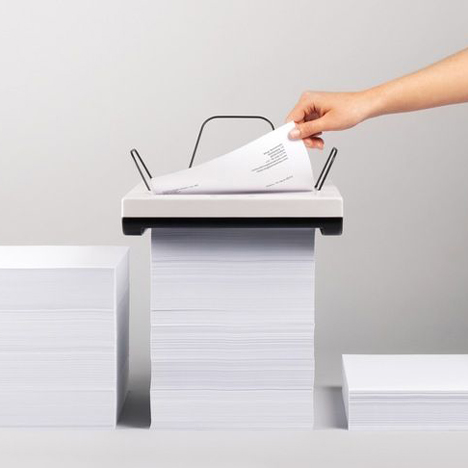
An Inkjet Printer That Requires No Paper Trays: Stack Printer by Mugi Yamamoto


Inkjet printers are essentially useful when it comes to printing photo, images and all other sorts of colored documents. However, these type of machines rarely get an ample of media capacity to hold a massive amount of paper sheets or other media types. Unlike lasers that can support more than two optional trays to maximize the unit's paper capacity, inkjets are typically limited to hold up to150-250 sheets. Well basically, they're not intended for high-speed and high-volume printing, but rather leaning towards providing high-quality graphic printouts.

Stack by Mugi Yamamoto
Photo Credits : MugiYamamoto.com
But, what if you can have an inkjet printer that can take a stack of media up to a thousand sheets or more? Yes, I actually said stack, a pile is also an appropriate term to use for this one. A typical printer, whether that's an inkjet or a laser, uses either a tray or a drawer to hold media. But after Mugi Yamamoto, an Industrial Designer from Switzerland came up with a peculiar yet outstanding printer concept, things will rather change extremely when you meet the Stack printer.

RATE THIS POST:

Thursday, August 15, 2013

New Compact Printers From Epson Allows Mobile Printing Even Without A Wireless Router

Experience Epson's Claria Home Ink with their newest lineup of small-in-one photo inkjet printers. The company's latest Wi-Fi direct enabled home printers that allow users to directly connect their devices to the machine without the presence of a router.

RATE THIS POST:

Tuesday, July 23, 2013

General Information About Print Cost And Printer Catridges

When it comes to purchasing printer supplies, there's a common notion to many when they heard about the word "cheap". Generally, it means an item or product can be purchased at a bargain price. However, brand manufacturers in the print industry are not in favor of non-original cartridges, hence myths spread out about the disadvantages of using such products. Take note that cheap ink and toner cartridges are not always as substandard as you might have thought. Print cost is primarily our concern, and most users could attest about the great reduction in their overall printing cost when using those what they call cheap cartridges.

Both the cost of cartridges and number of prints you get from each influence the machine's print cost. Let's say you're using an original cartridge, too pricey isn't it, but the yields were good enough. Then, comparing it to a low-price cartridge delivering almost exactly the same yield as the original. The print cost generated from using the original is more likely bigger over the cost you get from using the other one. Which among these two options will give you much savings in the long run?

RATE THIS POST:

Thursday, July 18, 2013

Epson WorkForce Pro WP-4515DN AIO Inkjet Printer

Epson WorkForce Pro WP-4515DN AIO Inkjet Printer
Comes from the latest range of Epson's inkjet devices, the Epson WorkForce Pro WP-4515DN is no less  than the average all-in-one inkjet printers in its range. With basic functions including print, scan and copy, plus a standard duplexer, though it lacks the support for fax. Whilst it offers a good set of features which makes it a well-round printer for small to mid-level printing.

RATE THIS POST:

Wednesday, July 17, 2013

HP Envy 5530 e-All-in-One Inkjet Printer Lets You Print Through The Cloud

HP Envy 5530 e-All-in-One Inkjet Printer
Leaning towards home printing, the newest addition in HP's Envy series that offers above average photo print quality including graphics and plain text printing. The HP Envy 5530 e-AIO inkjet printer can handle light-duty printing which basically makes it suitable as a personal home printer or preferably for home-office use.


RATE THIS POST:

Tuesday, July 16, 2013

Know More About Photo Papers For Photographic Printing

We've made posts about what are the things to consider when buying an inkjet printer, the pros and cons of using it over a laser, as well as the market of inks. But aside from the consumables specifically ink cartridges that an inkjet printer requires in order to run, it also needs specialty papers. Considering that inkjets are more precisely capable of producing photo and high resolution prints. With the nature of photography, the wide variety of paper types is actually a great advantage for them to create transitions and developing their own style.

Known brands in the inkjet manufacturing business offer their own specialty papers, while there are these third-party manufacturers offering partly the same variety but may differ in quality as their counterpart. Glossy, semi-glossy, matte, fine, luster, these terms define a photo papers quality in terms of surface, color and coating.

Before making a choice on purchasing a photo paper, you should know first what type of ink your inkjet printer use. Is it using dye-base or pigment-base, cause this may affect the printout result along with the type of photo paper you used. Both paper and ink work together to produce the best possible output, quality and longevity of the image my either reduce or stay for long depending on the combination of these two.

In terms of photographic printing, two of the most competing paper types are the fine art papers and matte papers. Fine art papers are best to use if you want texture variation, however they're typically thicker and heavier than any other types. While matte papers are often use by many who preferred their printout to have the smoothest  surface. Matte papers have three major surface textures such as smooth, satin and velvet, the latter is not smooth but rather soft, while the last is more rough than the rest.

Photo papers may also vary in thickness and weight. Notice when purchasing a pack of paper supplies there's the term "GSM or gsm" which indicates the weight of each sheet expressed in grams per square meter. While thickness is simply expressed in millimeter (mm), but it doesn't mean that a thicker sheet of paper means it is much heavier. It can have the same weight as a thin paper, the only advantage of using thicker sheets is that they can take ink loads much greater.

To those who are using HP photo printer, they said that original HP inkjet cartridges only works best with HP photo papers. That's not always the case, third party photo papers are often capable of providing better output. They can even exceed the longevity of photographic quality that branded products may offer.

RATE THIS POST:

Monday, July 15, 2013

Epson Expression Home XP-410 Small-in-One inkjet Printer

Epson Expression Home XP-410 Small-in-One inkjet Printer
Today's printing is comparably less needed than what it seens a few years back, with the emergence of online social medias, storage and mobile devices, people are getting more into less printing. A few companies in the print industry quit a small part of their business particularly the production of inkjet printers, for they might have seen the demand for such machines was running low. But despite these issues, Epson continues to provide quality color printing solution by unveiling multifunction inkjet printers every now and then. In fact, here's one of its latest inkjet printer to offer, the Epson Expression Home XP-410 small-in-one. Don't even ask if its inks are quite low in prices, that's a bit absurd of a question, you'll hardly find a model nowadays that uses cheap inks.

The printer's control panel has a nice tilted angle, and what's good about it is it can still be adjusted to your fitting. It features a 2.5-inch color display (not touchscreen) which can be controlled through touch-sensitive controls on its right side. Aside from the ON switch, display and touch controls, there's no keypad or any extra buttons which creates a stunningly neat-looking control panel. Its chassis has nice corners and curves, with a matte gloss black coating, perfect to sit beside a share desk space in the office.

Input capacity is extremely low, considering that you can find competitive printers from its range that could offer a bit more of media handling like 250-sheets or so. But the Home XP-410 can only support 100 sheets and a single input tray, that's one of its snag.

Connectivity interfaces are also limited to a USB 2.0 host and WiFi 802.11 b/g/n are options available for setting up the printer. Located from its front are two ports for reading storage medias such as SD Card and Memory Stick Duos. Of course it also supports cloud printing through supported apps including Apple AirPrint and Google Cloud Print, plus various supported apps for mobile printing convenience.

Epson has been known lately for its continuous ink tank system supported by a select range of inkjet printers provided by the company. However this one is not included in their list, hence its four Epson inkjet cartridges (CYMK) require replacements when necessary. No matter how plain or colorful your printing can be, purchasing printer supplies such as laser toner cartridges and ink cartridges is a recurring task to all users. Actually from my own point of view, the saying "the cheaper the printer, the pricier the ink" does not always applies, it can be a case to case basis though.

RATE THIS POST:

Wednesday, July 10, 2013

The Battle Between OEMs and Compatible Printer Cartridges

Since there are still a lot of arguments whether to choose the path of using compatible printer cartridges or not, this make users more confused. Whilst each kind may offer advantages as well as disadvantages, by tackling these issues perhaps we can at least have a more informed decision. Also, there are certain considerations that we users should know before making any conclusion.

Printing in large volumes may tend to generate recurring expenses from purchasing replacements, the disadvantage of using branded cartridges is the price you'll have to pay for each piece or each set. Whereas using compatible toner cartridges and ink cartridges can minimize such expense by less than 30% approximately. Why are these compatible supplies less inexpensive compared to branded ones? Here's the answer, original cartridges are basically produced from resources such as natural materials and minerals, hence it requires greater man power and production cost. While our contender which is the compatible, these products are made from used original cartridges, take note of the word original, thus they're also known as remanufactured toner cartridges and inks. It's more of like a third party manufacturer reused post-consumer wastes for the production of compatible supplies. In conclusion, OEMs (original equipment manufacturer) come in high prices because consumers are not only paying for the brand name, but also for the whole manufacturing process and gathering of materials.

In terms of quality, printouts made from original cartridges are mostly excellent, period. Now if you may ask, does a compatible cartridge can't offer the same performance and quality just as a branded? Let's put it this way, compatibles are not original, hence if they can provide exactly what a high-priced cartridge could offer then there's no need to point out their differences. Although there were a few testimonials from customers claiming about the surprising performance and printout quality that a compatible can provide. If you try to conduct your own test, say, two printers having two different cartridges, one with an OEM and the other with a compatible. Whatever type of file you print, it's either the branded will produce a more pleasing result, or the match will end up with a draw result. Why are compatible cartridges producing below of par prints? Actually you can answer this question all by yourself, call it a trade-off, you pay less and so you'll get less. Since the price of a compatible cartridge is roughly 30-50% less cheaper, it's basically common to expect a bit of a cut in quality. But in terms of capacity or yield, our contender can certainly beat the champion.

Opting to compatibles is not too easy especially for users who owns a latest printer, since third party manufacturers can't easily cope with the sustainability along with the trending machines. The only snag about OEMs is their exorbitant prices, unless those big names in the print industry would make a big price cut in their printer supplies.

RATE THIS POST:

Wednesday, June 19, 2013

Epson WorkForce WF-3520DWF All-In-One Inkjet Printer

Epson WorkForce WF-3520DWF All-In-One Inkjet Printer
Epson's latest colour inkjet printer, the WorkForce WF-3520DWF AIO, that offers highlighted features comparable to a laser printer. Built primarily for small office, workgroups and all other humble-size working environments. It's compact yet full of nice features, and is less heavy compared to some all-in-one machines in its range, which give it a nice fit on a shared desk space.

Basically, what you can do with the WF-3520DWF is to print, copy, scan and fax, plus it supports wireless and mobile printing. It's actually one of the featured printer from our last month's post which talks about First-Rate Apple AirPrint Supported Printers to Buy, go see it for your reference.Going back to our post, this printer has a built-in WiFi interface which can be used to allow multiple users to access the printer over a network at once. Hence, it's compatible to work with iOS devices through installing Apple AirPrint app, or Android-powered device, use the Google Cloud Print app for your convenience.

One main reason why it suits the role of an office printer is that it supports double-sided or duplex printing capability, which allows printing on both sides of a page. It's front panel, though not as impressive as it seems, has a nifty look. Consisting of a 6.3cm screen with no touch feature, yet the backlit touch buttons on both sides will help you navigate the device. There's also the alphanumeric keypad on its right side, with a few touch buttons including Stop/Reset, B&W, and Color for copying purposes. The switch and WiFi indicator is located on the front panel's far left edge.

Paper capacity is not so generous but rather enough for a small office, with a 250-sheet main paper tray -- no option to expand it. The WF-3520DWF only requires four inkjet cartridges surprisingly, unlike Canon color inkjet printers that need 5-6 ink tanks, while HP inkjets, similarly require just the standard CMYK hp inkjet cartridges to run. In addition, the 3520DWF uses a large ink tank mainly for black, the rest are all in standard size such as cyan, magenta and yellow inks.

Epson rated the printer at 18ppm (pages-per-minute) in mono, and 11ppm in colour mode. Actually it's not bad at all, considering the range of print speed that most printers from WorkForce-series can offer. If you're more concern of what it's capable of in terms of quality, Epson touted that every drop of ink that comes out from this printer is water resistant, which prevents the image from smudging and discoloration.

RATE THIS POST:

Monday, May 20, 2013

Top-Quality And Affordable Wireless Printers

Since the widespread of smartphones and tablets that support wireless printing features, WiFi-enabled printer equipments took advantage of the hype. Actually, nowadays, you can even buy a new printer that supports wireless connectivity at a fairly low price. Especially for offices and most businesses that typically require a machine that can serve as a shared printer, and can shoot out a bunch of printouts in less than no time.

Here are three of the best yet affordable printer models in the market that feature a WiFi interface for wireless connectivity. Run through their brief details so you can have an idea on what printer model to choose.

Starting with the lowest price model, that's the Epson Expression Premium XP-400 Small-In-One Inkjet Printer. Aside from its catchy price, this equipment can provide much of what you need from a printer with its truly neat set of features.
Of course it offers wireless and mobile printing functionality through Epson's very own iPrint app, or via Apple AirPrint for iOS devices, while for non-iOS users, you can make use of Google Cloud Print. Another noteworthy feature of Epson XP-400 is its 2.5 inch color LCD display, which is not commonly available in most printers within its price range. Price starts @ $100 (Amazon).

Ranking second on our list is the Brother HL-2270DW Monochrome Laser Printer. If you prefer black&white printing, the HL-2270 is probably one of the best that you'll ever found. It also features both WiFi and Ethernet interfaces so users may have the option to either use it wireless or wired. This one has no LCD to offer, however its unique toner saving mode makes the score even. 
The HL-2270 has quoted print speed of 27ppm (pages-per-minute), topped with an automatic duplexer for easy double-sided printing. Since it's basically a single-cartridge only printer, the expense of buying replacement Brother toner cartridges won't be that much of a burden. Price starts @ $120 (Amazon).

Third and last would be the Epson WorkForce WF-3540 All-In-One Inkjet Printer. It features a non-adjustable 3.5 inch touchscreen LCD with gesture control. Print directly from the cloud via Google Cloud Print and Apple AirPrint through the printer's WiFi networking support. 
The WF-3540 also supports double-sided printing, and packed with industrial supporting features suitable for medium-level printing capacity. It's equipped with a decent paper handling capacity which includes two 250-page trays. Epson ink cartridges are commendably less expensive among other brands. Price starts @ $200 (Amazon).

RATE THIS POST:

Monday, May 13, 2013

Epson WorkForce WF-2540 Color Inkjet Multifunction Printer

Epson WorkForce WF-2540 Color Inkjet Multifunction Printer
An intricately built all-in-one printer, that's the Epson WorkForce WF-2540 Color Inkjet Multifunction printing machine. Its chassis is coated in a glossy black matte finish, which resembles the aesthetics that runs through the WorkForce family. When it comes to features and output quality, this machine serves more than well enough from what you can expect a color multifunction printer can do.

The WF-2540 features a 2.5 inch LCD display though not a touchscreen which might be more suitable for it. Buttons and keypads are well arranged, starting from the right side - Start, Stop/Reset, B&W, Color, Speed Dial/Group Dial, WiFi setup, Redial/Pause, numeric keypad (with Menu and back buttons at its bottom), directional keys. While the switch button for ON/OFF can be found at the left edge of the front panel, with WiFi LED indicator, plus three buttons (Copy, Fax, Scan) for basic functions.

It supports a 30-page automatic document feeder but it doesn't allow two-sided scanning. Aside from the ADF there's actually a 100-sheet rear mounted input tray. There can be found an adjustable latch for the ADF to support media with sizes up to 8.5 x 14 inches (legal size).

For connectivity interfaces the WF-2540 provides three options, a fast Ethernet, a high-speed USB 2.0, and WiFi for wireless connection. With all these options added the printer's easy setup functionality, setting it up to any PC or connect it over a network, things can be done with ease either way.

Whilst it provides a nice set of features and functionality that you might ever want a multifunction printer to have, a drawback is inevitable. One of which is the WF-2540's high ink cost, although this thing is just too common for an inkjet printer, we all know that customers often prefer machines with lower ink cost or ink consumption. Ink-type printers especially photo printers, they always eat up excessive consumables when printing but it's something considerable if you want a great quality printout. Its consumables are available in standard and high-capacity, the standard black cartridge yields 175 pages while the three colour Epson ink cartridges can yield 165 pages.

If you can afford to keep up restocking expensive ink cartridges for Epson WorkForce WF-2540 Color Inkjet MFP, then go for it. Considering its three connectivity options and nice built, it's really attractive in many ways.

RATE THIS POST:

Wednesday, May 08, 2013

Canon PIXMA MG5450 AIO Photo Printer With Pigment And Dye-Based Black Inks

Canon PIXMA MG5450 AIO Photo Printer
The Canon PIXMA MG5450 AIO Photo printer is a low-profile printing buddy for home use. It's basically an essential machine for photo printing, especially if you want to print images on printable CD/DVD discs. Considering that it's an all-in-one device, however it doesn't support fax functionality nor an ADF (Automatic-Document-Feeder).

Just like its predecessors, the MG5450 adopts the glossy black matte finish, office-style aesthetics which is somehow common from the PIXMA family. Its design is partly different from the previous models from its range, especially its flatbed for scanning purposes. This printer features a full-color LCD screen display about 2.9 inch in size, with three keys below for menu navigation. The LCD is not a touchscreen though, with the ON and Home button at the left side of the front panel, while the other buttons like Black, Color, increase, reduce, 4-direction key are all at the right side.

Paper Handling Capacity
Its main input tray can hold a maximum of 125 plain paper sheets, supplemented with a photo paper tray for glossy medias. The output tray can be found just in front of the machine (the cover with the Canon logo)  which folds down and turns itself as an output tray. The MG5450 supports duplex (double-sided) printing which is considered as one of the printer's key-features.

Connectivity Interfaces
A high-speed USB cable host is included, as well as WiFi support for wireless printing. It features an easy access and stable connection between the machine and a PC or even to a tablet. Setup includes a pack of useful software from Canon such as My Image Garden and Creative Park Premium.

The PIXMA MG5450 offers a rated print speed of up to 15ppm (pages-per-minute) in mono and 10ppm in full-colour printing. Well, if you want a really fast inkjet printer that runs the same like a laserjet, you may consider the HP Officejet Pro Black and White 3610 and 3620 AIO Printers, they're also inkjet printers but with comparable speed like lasers. These two printers can only print monochrome documents, and require black HP inkjet cartridges alone.

It uses five Canon ink cartridges which consist of the standard CYM colors, plus a pigment-based and dye-based black ink tanks. Canon MG5450's consumables are all available in both standard and high-capacity cartridges.

RATE THIS POST:

Sunday, May 05, 2013

Things To Know When Choosing Printer For Photographic Printing

Things To Know When Choosing Printer For Photographic Printing
Digital cameras, smartphones and tablets with high camera resolution are now commonly used for taking photographs in any occasion. Hence, home printers that are dedicated for photo printing, as well as machines for photographic printing business are getting much attention nowadays. Not to mention a lot of image-editing software and applications that are widely used by many such as Instagram, Hipstamatic,Camera+ and the likes. However, consumers aren't that much knowledgeable of which brand, model and all factors that must be considered when choosing a photo printer.

Cost is a very essential factor to think of, photographic printing whether at home or in the office, it can be costly. From the printer device itself, to the replacement inks or toners, plus the required photo-papers, all of these aren't that cheap. Although there are inkjet printers in the market with quite considerable in price, while some are generously affordable, typically they offer less features. One easy way to find the best or at least the most suitable photo printer is by simply searching the net for some checklist or rundown of the best inkjet photo printers, but make sure the post is up to date. Also, before you consider buying an inkjet, try to clear these things out to yourself:

Inkjet photo printers can have a lowest price of not below $150 and with less features. While the pricey models are tagged at $599 above. The question is, how much are you willing to spend for a printer? We're talking about the printer alone, consumables aren't included yet, and that's another story.

Ink cartridges either black or color, regardless of their brand, both generates an enormous expense in the long run. Prices vary depending on the model, but more likely it can range from $12.99 to $49.99 per cartridge. At HP shopping site, the lowest color HP inkjet cartridges come with a price tag of $11.99 (direct) and the most expensive goes way more than a hundred dollars.

Now let's talk about the features, what specifically do you expect a printer to do? Should you go for a single-function mainly for photo printing purposes, or consider a model that has a good set of features and functionality? Ideally, it's better to have multifunction device than to maintain several stand-alone machines.

If you want to print images in larger scales, buy a large-format printer and it would be better to consult someone or a tech guy before you choose a printer. Ask for the machine's cost-per-print and operating cost, that will give you an idea how much you'll have to spend in the long run.

RATE THIS POST:

Sunday, April 28, 2013

Learn More About Xerox Solid Ink Technology

Learn More About Xerox Solid Ink Technology
Solid inks were actually existing around 1986 and was developed by Tektronix. A few years later, Xerox acquired Tektronix Color Printing and Imaging Division, hence the technology behind solid ink became part of the said company. On its early years of being introduced to the market, it targeted the graphic art industry. However, since technological growth is too rapid, improvements were developed and focused on developing cost-efficient machines that use solid ink technology to target office printing environments.

Xerox ColorQube line of printers support solid ink printing technology, to see their products check out this link - xerox solid ink printers. There were a few misconceptions about this technology, however a false idea at the end of the day is still a false idea. Actually it provides better printing solution to many businesses and offices in several aspects. Environment-wise, these solid inks generate the most minimum printing waste at up to 90% less. Not only that, since they're literally hard and compact, solid inks require no tanks or cartridges to house the ink, which aids on plastic waste reduction.

Talking about output quality, you know there's a difference between laser and ink consumables, same goes with solid inks, it has a distinct printout quality over those two conventional cartridges. Clear and vivid photo printouts, as well as crisp plain black text can be both achieved with solid ink technology. Each drop of melted solid inks are finely sprayed in every printing material, although it eats up much ink with every printing process compared to ink cartridges.

Just like a typical ink type printer, solid ink machines produces output that requires some extra time to dry before you can totally handle or frame the printout. When it comes to damage or print failures, any user whether with a laser or inkjet printer may encounter the same trouble when using solid ink printers.

After reading all these information, if you still want to stick with either inkjet printer or laser printer, that's absolutely fine, but trying out something always sounds interesting. You'll never know exactly the difference of solid inks over ink and laser toner cartridges unless you actually tried it yourself.


RATE THIS POST:
About | Contact | Facebook | Google+ | Disclosure