Navigation

Showing posts with label Inkjet Printers. Show all posts

Tuesday, May 13, 2014

Key Elements About HP’s PageWide Technology

Hewlett-Packard or simply HP has been one of the leading giants in printing technology since the day their business emerged in the industry. Back in 1998 they astounded everyone in the field of printer technology with such great development. They were able to develop a disposable print head that comes built-in into the cartridges, particularly their supplies.The value of this breakthrough is phenomenal, and truly it deserves credits. 

Key Elements About HP’s PageWide Technology
Unlike before, printer consumables have their print heads permanently installed into the cartridge itself. Thus, they tend to clog since the said component can’t be replaced resulting to output quality inconsistency. That is the just one of the few complications that the print industry had to deal with until HP developed the solution long ago.

Surprisingly, though not that much, HP once again took the position as the forefront in the development of a new breakthrough of print head design. Now widely known as PageWide technology, this totally amazing improvement first appeared in HP’s previous released of their company’s newest range of Officejet Pro X-series inkjet printers. The series includes – X451DN, X551DW, X476DN and X576DW. These four models use HP 970XL (black ink) and HP 971XL color ink cartridges as replacements.

According to the manufacturer, these are the key elements that you should know about PageWide technology:

  • A pagewide printhead has 10 HP Thermal inkjet chips called dies. Each die has 1,056 nozzles for each four colors. Thus, a single die has a total of 4,224 nozzles and 42,420 nozzles on the printhead.


  • Their newest formulated HP pigment inks particularly the black is expected to produce high-black optical density in just a single pass. While in general, inks in each cartridge can resist cross-contamination during storage, installation and printing process.


  •  In terms of speed, it literally made a few steps forward by offering new machines that are capable of high-speed printing at up to 70 pages per minute. These printers are not laser types or even associated with lasers though, yet they’re advanced enough to beat or even outperform one.


  •  The printheads are said to last until the lifetime of the machine.


  •  Aside that it can detect when the cartridge is running low or out of ink, it also comes with automatic nozzle health sensing, active and passive nozzle substitution, and automatic printhead servicing.


To simply put it, this HP PageWide technology is literally an advanced breakthrough that once again made a tremendous changed in the print industry particularly in printing technology. Who knows what might have been next, let's just cross our fingers that by the time they will surprise the industry for the nth time around, we can still witness it.

RATE THIS POST:

Thursday, May 01, 2014

Brother’s Recommended Retailers of Replacement Supplies For Discontinued Printer Models

Brother’s Recommended Retailers of Replacement Supplies For Discontinued Printer Models
Some of us may have been aware that once a printer manufacturer discontinuous a specific model of machine due to some certain reasons, the production of its supplies will relatively diminish. We may speculate that probably users will tend to upgrade to a higher model. Thus, replacement demands for the said discontinued model will drop rapidly. But that’s just one of the possibilities that we may consider.

Whatever the reason may be, soon after a year or so, users may find it hard to get replacements for their old model printer. Eventually, this will lead to the option of dumping it out and getting a new one. That sounds similar to what we mentioned earlier, isn't it. But that’s just how it is, not unless they can still find a retailer which can provide them the supplies they need.

One advantage of Brother printer users is that when the manufacturer phased out a certain model of either an inkjet or laserjet machine, there are recommended retailers that Brother will provide. That is to compensate for the inconvenience they caused from phasing out the machine you were using.

We've tried it as well to see the name of retailers they do recommend. Using the supplies for a discontinued model such as the Brother MFC-9840CDW as our example, we've found this list of about 19 online printer supply retailers that were recommended by Brother. By the way, the product we used has a model name of Brother TN115 black toner cartridge. It’s actually a set of four replacements for the printer we chose, but it’s not necessary to check them all since one will do.

Here are the names of retailers recommended by Brother where you can get supplies for discontinued printers:

Office Depot Best Buy
Staples Costco
Quill TigerDirect
ProVantage PCM
CDW BrotherMall
Walmart TechDepot
B&H MacMall
Computers4Sure SamsClub
Rakuten CompUSA

We didn't check which one offers the lowest price since it’s not actually our intention to determine such. What we intend here is to inform you what other names you could trust from which you can also get supplies for your printer, regardless it is discontinued or not. Probably the list will change depending on the availability of the item you need, since they indicate if a particular shop still have it in stock.

Once you click a certain retailer you will be redirected to the product’s main page where you will be able to see the price, specifications and details of the item you are about to purchase. So if you are wondering which among those providers can give you a better offer, unfortunately that is something you need to find out yourself.

RATE THIS POST:

Monday, April 21, 2014

Which Should You Prefer: Color LaserJet or Inkjet Printers?

Which Should You Prefer: Color LaserJet or Inkjet Printers?
Color laser printers aren't too common to use mainly for colored printing, normally we prefer inkjets as they’re probably more suitable for such purpose. However, if there’s an occasional need to print graphic or image on top of regular monochrome printing, that’s the point where we can consider having the rival of inkjet instead.

Inkjets Over LaserJets

There are downsides whichever you may choose, like for example ink types are typically slower compared to lasers. But you shouldn't look at it as either one is more advantageous than the other. Take note that both of these machines are intended for certain uses that only one of them can perform effectively. These dilemmas are just part of the few reasons why making a decision on which type of printer to choose has been a bit troublesome for others. Those who are not aware, or probably care less about such information are either a personal home user, or just in need of an urgent printer.

Indeed, printing documents with images or graphics is considerably not a forte of laser printers. That is something that inkjets are more than capable of providing the best results. But to make it fair, developers might have thought of giving the lasers their own expertise. Any office or business environment wouldn't debate on this matter that laser type printers or laserjets in general are faster and more efficient on printing text-only or documents with little to less graphic.

Factors to Consider

Engine speed is also a factor which they rival, although nowadays certain inkjet models are capable of matching their speeds over laserjets. If you know a little history about their evolution, laser types are normally faster thus increasing production and throughput in any office or business where they find their places. An inkjet printer on the other hand, is more suitable for home or personal printing due to slow printing speed and several issues. But gone are those days, since our today’s level of technology particularly in the print industry obliterated all these hindrances. Making it fair for ink and laser type printers to deserve a place on different environments, whether for personal use or not.

Cost-per-page, regardless of which type you use will always be an issue especially to users who are kind of familiar on how printer manufacturers make their businesses grow. To shed some light on the matter, it is not their printers that give them the most of their profits, but rather the supplies they sell. For example a Brother printer that uses color TN315 toner cartridges would cost around $500 more or less. But considering the recurring expense of purchasing four replacements over and over again, it will make more sense why printer nowadays are inexpensive compared before.

RATE THIS POST:

Wednesday, April 16, 2014

The Best Wide Format Printers That Are Also Good for Standard Paper Size Printing

The Best Wide Format Printers That Are Also Good for Standard Paper Size Printing
Long before wide-format printers emerged in the print industry, there were basically two commonly known kinds of machine used for printing – compact and large. One thing is common between these two, and that is the print functionality, regardless if its monochrome or color, multifunction or not.

Traditional large-scale printing is covered by separate machines that are mainly intended to produce such materials or as what we called them as tabloid media. Over-sized sheets like for example an 11x17-inch paper or posters, were not supported by conventional printers before. If you are familiar with plotters, they’re basically printers as well, albeit they are made only for wide sizes. But nowadays, these large or outsize media can now also fit on tabloid printers that are capable of either wide-format or compact printing.

If you have this occasional need to print tabloid or poster-sized documents such as 11x17-inch or 24x36-inch, these models can do it right for you. We’ve picked two models from three different manufacturers in case you have preferences.

• Brother MFC-J6920DW
• Brother MFC-J4510DW
• Epson WorkForce WF-7520
• Epson Expression Photo XP-950 AIO
• HP Officejet 7610 Wide-Format eAIO
• HP Laserjet Pro 700 M712DN

Those two Brother printers are inkjets with multi-functionality, and capable of single-sheet 11x17-inch media printing. Epson’s photo printers particularly the ones from Expression series are known for the quality of prints they can produce. Although you better ready your wallet for some high-priced ink cartridges. HP in the competition was able to give a multifunction inkjet and mono laserjet which are both capable of printing tabloid-size documents.

If you’re not after the quality of output, you can spare the inkjet units and consider the only laser one from HP. However, its snag is that it can only provide monochrome prints. It’s kind of disappointing but come to think of it, black-and-white poster isn’t that bad at all. Plus, you will only have to replace one cartridge (M172DN uses HP CF214A toner), unlike those inkjet especially the Epson Photo XP-950 that requires six ink cartridges, and yes you read it right.

Cost-per-page is a factor you should consider when looking for a tabloid printer since the percent of coverage it takes to cover a wide sheet of media is far too different from letter and legal-sized sheets.

Collectively, these printers are referred to as wide-format and come along with big expenses not unless it is just for occasional needs. Since the ones we provided from the list above are also capable of multifunctionality and small-sized printing, purchasing one will make a good investment.

RATE THIS POST:

Thursday, January 16, 2014

Lexmark Pro 915 Color Inkjet Printer Overview

To those who have tried the Lexmark Pinnacle Pro901, you’ll probably get used to working with the Pro915 model. It’s basically an all-in-one color inkjet printer inline with the company’s high-end series of printing devices. This machine uses Vizix but with a much higher version of print engine for boosted color ink printing solution.

Lexmark Pro 915 Color Inkjet Printer Overview
Design and Basic Features


The family where it belongs to sports an edgy block cut on several corners and sides, which it certainly inherited. Just look at its control panel and you’ll know what I mean, but it’s actually a good thing making it a bit unique among the rest. A touch screen LCD sits at the center most of the panel with touch-sensitive buttons on either side. Its touch panel is very intuitive, with a combination of touch and swipe gestures you’ll surely find it easy to navigate.


Speed and Consumables


According to its manufacturer, the Lexmark Pro-915 has a claimed speed of 17 pages per minute and 10 image per minute (color). Duplex printing is of course available but it might be a little too slow for what you may expect from a printer with Vizix 2 engine. However, copying is considerably fast on both black or plaintext documents and with photos as well.

A color printer wouldn’t be that much efficient if it can’t provide impressive print results. That is what this machine actually proves through its revamped cartridges filled with innovated inks. Print results are very reasonable for the price of each replacement. Additionally, the cartridges come in standard and high-capacity particularly the Lexmark 150XL high-yield black ink. Installing or replacing these consumables is fairly easy it’s just like plugging flash drive into a port.

Interfaces and Connectivity


Considering its price, users deserve to have a generous set of interfaces. Let’s start below the control panel, there you’ll find USB ports, memory card slots and Pictbridge socket. There’s a phone line and handset jacks just in case you want to use the machine for faxing, both are found at the rear. But the most outstanding among these interfaces is its built-in wireless capability. However, setting it up on a wireless network may not be that easy. Actually there’s an app that you can download to make things easy.

Paper Handling


Media handling is fine for a small or medium-size office. With the automatic document feeder user gets a solid paper feeding mechanism. Unfortunately there’s no separate tray for photo papers and such. Hence, the standard 250-sheet tray is the only one you’ll have to use and reload with either plain or special paper, but not both. If you will be using it mainly for business printing which basically requires different media types, there’s an optional 250-sheet tray that you can add underneath.

RATE THIS POST:

Tuesday, January 14, 2014

Know More About Canon MG7120 Photo All-In-One Printer

Canon MG7120 Photo All-In-One Printer
In the last quarter of 2013, Canon introduced to the market the PIXMA MG7120 Photo AIO printer. It primarily targets home office users through its solid set of features and functionality that are essentially built for basic to intermediate use.

Basic Features

Basically the MG7120 can print, copy and scan which is totally impressive as it managed to squeeze in these functionality in a real compact size. Its engine is somehow slow especially if you’re printing more of color documents. For black it can shoot out prints at a speed of 15 images per minute while for color it’s a bit ponderous at 10 images per minute. The control panel is very much sophisticated which complements well the design and built of the machine. A perfectly set touch screen LCD about 3.5-inch in size allows image previewing and of course printer navigation. Notices, errors and prompts are displayed clearly especially the ink monitoring system to check the status of equipped Canon CLI-251XL inks. Take note that it requires 6 ink tanks such as the basic CYMK, plus a gray and one enhancer.

Paper Capacity

Paper handling is considerable for its small size. It houses a standard input cassette that can only hold a maximum of 125-sheets. An auxiliary tray comes handy for photo media and specialty papers. It is either you load it with 10 sheets of 5x7 or 20 sheets of 4x6 photo papers. Fortunately, the MG7120 supports automatic duplexing or double-sided printing.

Copying and Scanning

Well, as mentioned users can also scan or copy via the PIXMA MG7120 however both only offer basic support. Copier features document reduction and enlargement, multiple and borderless copying, as well as fit-to-page. The scanner on the other hand uses a flatbed and contact image sensor and allows directly scanning to email and memory cards.

Interfaces

The MG7120 photo printer comes standard with a generous set of connectivity options. Basics are available such as Hi-Speed USB and Ethernet ports, plus memory card slots and PictBridge. Cloud and Air printing are both supported through its wireless LAN. Additionally, a variety of software and utility tools can be downloaded to optimize usage. The Canon PIXMA MG7120 Photo AIO inkjet printer is a good choice for mobile printing, defining it as a suitable device for home use.

RATE THIS POST:

Friday, January 10, 2014

Use Original Lexmark 150XL Ink Cartridges for a Fraction of the Cost

Are you using Lexmark 150XL ink cartridges and still paying at exorbitant prices? Perhaps you’re not aware of their return program cartridges. Compared to a regular replacement these products are also brand new and are genuine from the materials they’re made of. Even the ink inside these cartridges is the very special pigment that Lexmark produced.

What’s the difference of a return program cartridge from a regular cartridge?

Basically and technically they are of the same type. The deal between the manufacturer and the customer makes these two items different. Lexmark RPCs (return program cartridges) are bound to be recycled only by Lexmark. Hence, when a customer would prefer such, a special discount will be given in exchange for the agreement that the item will be returned only to them. Regular cartridges on the other hand are pricier over the RPCs since they are not bounded to any agreement. However, if the customer would like to return the item for recycling, they can still send it back at no cost at all.

It’s more like they’re mandatory pushing their customers to participate in their recycling program. In a way it’s a good thing, and may be considered a win-win relationship between the manufacturer and the consumer. We get discount for accepting the agreement, while they get they will get what they need from us.

Isn’t it ironic that Lexmark had to do this just to let their customers practice recycling? Although on second thought, if a cartridge has been recycled then it should be more affordable than a branded one. Such that the material used to produce a reprocessed product came from empty cartridges, which are obviously cheaper to utilize for manufacturing new supplies.

To give you a clearer picture of what we’re talking about, we provide a comparison of prices between an RPC and a regular Lexmark 150XL ink.

Type
Color
Yield Type
Price
RPC
Black
High-Yield
$31
Regular
Black
High-Yield
$38
RPC
Black
Low-Yield
$10
Regular
Black
Low-Yield
NA
RPC
Color
High-Yield
$33
Regular
Color
Low-Yield
$40


Now what would you prefer buying? Would you still continue buying the regulars or switch to RPC and make a good choice not only for yourself but also for the environment? Customers deserved some benefits once in a while, and this is considered as one. Practically we should really learn to reused and recreate out of our own waste. What more can be better than this, getting discount without compromising the quality.


RATE THIS POST:

Wednesday, January 08, 2014

Resetting Purge Counter To Get Rid of Machine Error 46

Resetting Purge Counter To Get Rid of Machine Error 46

How many of you have experienced the Machine Error 46 on your Brother inkjet printers? It’s one of the most vexing machine errors that you may encounter when using an ink-type machine. It’s literally frustrating since in some cases the only way to solve this is through getting it fix by someone from a service centre. Aside from the fact that you have to pay a fee for fixing the error, it’s also a hassle to find a shop that is really knowledgeable about the matter and is capable of getting rid of the problem. 

This printer issue which is technically referred to as Error 46 or “Unable to Clean” indicates that your machine detects that the ink absorber is saturated with ink and may tend to overflow. Hold on a sec, because not most of the time this error is accurate. Basically, your printer has this built-in system that roughly estimates the amount of ink the tank currently contains.

How does it do it?


Let’s use the Brother MFC-J415W as our example. Based on the number of printed pages and cleaning operation performed, the system determines how full the absorber is. Since this particular model uses four Brother LC61 ink cartridges. Hence the waste ink tank may get full often especially if you’re regularly using the printer.

But what if it’s not that accurate? There’s a possibility that you can still create more prints with the machine. However, since the error has prompted all the operations are halted and in short you won’t be able to use your printer. Some common solutions that most users do to get rid of this problem are by resetting the counter or changing the waste ink tank. If you’re knowledgeable of performing either of the said two solutions then you’re lucky. But if not, we still have a third solution to offer for you and that is by resetting the purge counter of your machine.

To reset the purge counter of your machine, follow the instructions below:

Turn the unit OFF, and hold the MENU (green button) then turn it back ON while still pressing the button. From the status screen, it should display “MAINTENANCE”.

Release the button and press 8 and 0 from the keypad. Now using the arrow keys, press the DOWN button to locate the purge counter. (eg. PURGE00#####)

Using the numpad press 2, 7, 8 and 3 consecutively. If for example your purge counts as PURGE0050035, after keying in 2783, the number from the counter should be reset to 0000000.

If it’s successful, press the STOP (red button) to step back to the previous maintenance page. To exit, press the number 9 key twice.

Hopefully after performing this procedure your printer’s waste ink counter is now reset.

RATE THIS POST:

Wednesday, October 23, 2013

What Exactly Is The Printer's Duplex Printing Feature?

Duplex printing or also referred to as double-sided printing is a printer feature that allows the unit to automatically print on both sides of a printed material. Thus, such devices that doesn't feature this capability can only support single-sided printing which is the most typical.

Larger offices, businesses and all other busy environments mostly require this certain feature. Single-function printers, either inkjet or laser jet, uses the abbreviated term ADF which stands for "Automatic Document Feeder". This feeder works with the duplexer to be able to print images, documents or text on a page that is supposed to be bound. A high-end multifunction printer on the other hand, may come with two print engines, thus allowing the unit to print on both sides of a sheet even just on a single pass.

Books for example are bounded, which means that the pages you’re reading are produced through duplex printing. But before the paper sheets pass through the feeder, users have to set the from the machine’s print command whether the file should be printed in short-edge or long-edge binding mode. To further explain, Long-Edge binding is basically the portrait mode when duplexing from which the printed pages could be turned side-to-side. An example of which are books, magazines, and all other reading materials that can be turned side-to-side. While short-edge binding on the other hand, is the notepad or sketchpad like materials from which the pages are flipped vertically.

See the images below to know the difference between Long-Edge and Short-Edge Binding:

Short Edge Binding Duplex Printing
Long Edge Binding Duplex Printing
Short Edge Binding Duplex Printing
Photo Credits : Brother Solutions Center  

Do you know that even if your printer doesn't have such feature, duplexing can still be done with the unit though it may require human intervention? Yes, a single-sided printer like for example the Brother HL-3040 model can still be used to create double-sided printouts. The trick here is that the user will do the manual process of flipping the printed material from the output tray and reload it back to the input tray. It’s a bit tricky since you have to determine which side of the page the printer prints on to avoid printing on the same side of the page. It is recommended to make a trial and error first before working with the real project.

One advantage of using duplex printing is that it reduces the amount resources being used and or wasted. Albeit it also has the higher chance of wasting resources if ever you unwittingly print on the wrong side. Let’s say, unless you’re particularly sure of what you are doing or will be doing, don’t try use the duplexer. It’s either you save the Brother toner cartridges installed from your printer or it will end up the other way around. Along with the wasted paper materials, the energy consumed during the printing process, as well as time and effort will all went to nothing.

RATE THIS POST:

Monday, September 30, 2013

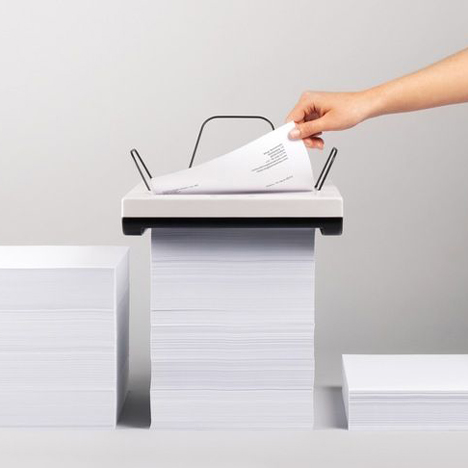
An Inkjet Printer That Requires No Paper Trays: Stack Printer by Mugi Yamamoto


Inkjet printers are essentially useful when it comes to printing photo, images and all other sorts of colored documents. However, these type of machines rarely get an ample of media capacity to hold a massive amount of paper sheets or other media types. Unlike lasers that can support more than two optional trays to maximize the unit's paper capacity, inkjets are typically limited to hold up to150-250 sheets. Well basically, they're not intended for high-speed and high-volume printing, but rather leaning towards providing high-quality graphic printouts.

Stack by Mugi Yamamoto
Photo Credits : MugiYamamoto.com
But, what if you can have an inkjet printer that can take a stack of media up to a thousand sheets or more? Yes, I actually said stack, a pile is also an appropriate term to use for this one. A typical printer, whether that's an inkjet or a laser, uses either a tray or a drawer to hold media. But after Mugi Yamamoto, an Industrial Designer from Switzerland came up with a peculiar yet outstanding printer concept, things will rather change extremely when you meet the Stack printer.

RATE THIS POST:

Thursday, August 15, 2013

New Compact Printers From Epson Allows Mobile Printing Even Without A Wireless Router

Experience Epson's Claria Home Ink with their newest lineup of small-in-one photo inkjet printers. The company's latest Wi-Fi direct enabled home printers that allow users to directly connect their devices to the machine without the presence of a router.

RATE THIS POST:

Wednesday, July 24, 2013

Canon Introduced Two AIO Printers The PIXMA MG3520 WiFi And PIXMA MG2420 AIO

Canon PIXMA MG3520 WiFi And PIXMA MG2420 AIO
Canon U.S.A. released just yesterday the company's two latest printers inline with the PIXMA family, the MG3520 WiFi Photo printer and the MG2420 AIO printer. Both models were built with such excellency to provide better digital imaging solutions through vivid prints. Canon seems to target users that are mainly concern of the price yet not compromising quality and functionality. Here are some of the notable specs you might want to know about these two PIXMA printers.


RATE THIS POST:

Friday, July 19, 2013

Samsung Xpress Series and Brother MFC-J870DW : Printers Equipped With NFC Technology

Recently last month, Samsung launched their new line of laser printers that feature NFC technology or well known as Near-Field Communication. It allows two supported devices to communicate and exchange data through touching one another, tapping, or getting them near with each other. This technology was once a very common feature in mobile devices particularly with smartphones. Now it has been applied to a non-mobile device such as a printer and surprisingly went into a hype.

Samsung's Xpress series includes three NFC supported printers which is the C410W, C460W and C460FW. The last model can print, scan, copy and fax, while the other two doesn't include fax functionality. More or less, these new range offers 18ppm (pages-per-minute) print speed in both mono and colour printing. With the NFC feature, these printers may be used to print files, documents and even web contents by simply letting your device touch the printer. Connecting you phone to the printer is easy, however you won't be able to transfer the data unless you download a  mobile print application and WiFi Direct, or any equivalent app.

RATE THIS POST:

Thursday, July 18, 2013

Epson WorkForce Pro WP-4515DN AIO Inkjet Printer

Epson WorkForce Pro WP-4515DN AIO Inkjet Printer
Comes from the latest range of Epson's inkjet devices, the Epson WorkForce Pro WP-4515DN is no less  than the average all-in-one inkjet printers in its range. With basic functions including print, scan and copy, plus a standard duplexer, though it lacks the support for fax. Whilst it offers a good set of features which makes it a well-round printer for small to mid-level printing.

RATE THIS POST:

Wednesday, July 17, 2013

HP Envy 5530 e-All-in-One Inkjet Printer Lets You Print Through The Cloud

HP Envy 5530 e-All-in-One Inkjet Printer
Leaning towards home printing, the newest addition in HP's Envy series that offers above average photo print quality including graphics and plain text printing. The HP Envy 5530 e-AIO inkjet printer can handle light-duty printing which basically makes it suitable as a personal home printer or preferably for home-office use.


RATE THIS POST:

Tuesday, July 16, 2013

Know More About Photo Papers For Photographic Printing

We've made posts about what are the things to consider when buying an inkjet printer, the pros and cons of using it over a laser, as well as the market of inks. But aside from the consumables specifically ink cartridges that an inkjet printer requires in order to run, it also needs specialty papers. Considering that inkjets are more precisely capable of producing photo and high resolution prints. With the nature of photography, the wide variety of paper types is actually a great advantage for them to create transitions and developing their own style.

Known brands in the inkjet manufacturing business offer their own specialty papers, while there are these third-party manufacturers offering partly the same variety but may differ in quality as their counterpart. Glossy, semi-glossy, matte, fine, luster, these terms define a photo papers quality in terms of surface, color and coating.

Before making a choice on purchasing a photo paper, you should know first what type of ink your inkjet printer use. Is it using dye-base or pigment-base, cause this may affect the printout result along with the type of photo paper you used. Both paper and ink work together to produce the best possible output, quality and longevity of the image my either reduce or stay for long depending on the combination of these two.

In terms of photographic printing, two of the most competing paper types are the fine art papers and matte papers. Fine art papers are best to use if you want texture variation, however they're typically thicker and heavier than any other types. While matte papers are often use by many who preferred their printout to have the smoothest  surface. Matte papers have three major surface textures such as smooth, satin and velvet, the latter is not smooth but rather soft, while the last is more rough than the rest.

Photo papers may also vary in thickness and weight. Notice when purchasing a pack of paper supplies there's the term "GSM or gsm" which indicates the weight of each sheet expressed in grams per square meter. While thickness is simply expressed in millimeter (mm), but it doesn't mean that a thicker sheet of paper means it is much heavier. It can have the same weight as a thin paper, the only advantage of using thicker sheets is that they can take ink loads much greater.

To those who are using HP photo printer, they said that original HP inkjet cartridges only works best with HP photo papers. That's not always the case, third party photo papers are often capable of providing better output. They can even exceed the longevity of photographic quality that branded products may offer.

RATE THIS POST:

Monday, July 15, 2013

Epson Expression Home XP-410 Small-in-One inkjet Printer

Epson Expression Home XP-410 Small-in-One inkjet Printer
Today's printing is comparably less needed than what it seens a few years back, with the emergence of online social medias, storage and mobile devices, people are getting more into less printing. A few companies in the print industry quit a small part of their business particularly the production of inkjet printers, for they might have seen the demand for such machines was running low. But despite these issues, Epson continues to provide quality color printing solution by unveiling multifunction inkjet printers every now and then. In fact, here's one of its latest inkjet printer to offer, the Epson Expression Home XP-410 small-in-one. Don't even ask if its inks are quite low in prices, that's a bit absurd of a question, you'll hardly find a model nowadays that uses cheap inks.

The printer's control panel has a nice tilted angle, and what's good about it is it can still be adjusted to your fitting. It features a 2.5-inch color display (not touchscreen) which can be controlled through touch-sensitive controls on its right side. Aside from the ON switch, display and touch controls, there's no keypad or any extra buttons which creates a stunningly neat-looking control panel. Its chassis has nice corners and curves, with a matte gloss black coating, perfect to sit beside a share desk space in the office.

Input capacity is extremely low, considering that you can find competitive printers from its range that could offer a bit more of media handling like 250-sheets or so. But the Home XP-410 can only support 100 sheets and a single input tray, that's one of its snag.

Connectivity interfaces are also limited to a USB 2.0 host and WiFi 802.11 b/g/n are options available for setting up the printer. Located from its front are two ports for reading storage medias such as SD Card and Memory Stick Duos. Of course it also supports cloud printing through supported apps including Apple AirPrint and Google Cloud Print, plus various supported apps for mobile printing convenience.

Epson has been known lately for its continuous ink tank system supported by a select range of inkjet printers provided by the company. However this one is not included in their list, hence its four Epson inkjet cartridges (CYMK) require replacements when necessary. No matter how plain or colorful your printing can be, purchasing printer supplies such as laser toner cartridges and ink cartridges is a recurring task to all users. Actually from my own point of view, the saying "the cheaper the printer, the pricier the ink" does not always applies, it can be a case to case basis though.

RATE THIS POST:

Friday, July 12, 2013

Laser Type Printers Can Also Be Used As Home Or Personal Printer

When it comes to cost in terms of purchasing printer consumables, inkjet type printers are more costly to run. Professionals who are into photographic printing certainly rely in colour printing, hence it's more appropriate on their part to use an inkjet. It's actually a part of their job to ignore the price of ink cartridges in the market, unless they would settle on sub par print quality. But assuming they would, do you think customers would be satisfied, your answer is precisely the thing they're avoiding. As much as possible, as an artist who's printing has been a task on a daily basis, quality should not be compromised. Aside from business purposes inkjets are also common as a personal printer. Home printing is indeed versatile, and a flexible printer that can accommodate such needs of all the family member is best suited for an inkjet. While a laser type printer leans toward providing high-level printing particularly to business and office establishments.

Lasers are mainly used for monochrome printing, text and non-graphical documents in black&white are the expertise of a laser printer. The fact that it can churn out prints in a much compelling speed and has more capacity, such factors are what a busy printing environment would demand. In addition, laser toner cartridges are generally retailed for much lower prices compared to ink cartridges. If you might notice, ink cartridges easily run empty of inks which results to buying replacements frequently. Whereas toner cartridges may run a hundred more print cycles before it gets empty, probably sounds more efficient.

The market of today's print industry is somehow peculiar, printer manufacturers are displaying brand new printers in their shelves, yet the consumers are more likely concern of the unit's cartridges. It's not even surprising, besides you'll just have to pay once for the machine, hence you should be mindful of the cost you will eventually face in the long run. This perhaps leads to a shift in wave where laser printers are now being used for personal and home printing. Since colour laser printers are commonly available and are capable of producing average color printout quality. Added those manufacturers that are targeting home printing needs by catering laser and LED type printers that can matched up with most high-end inkjets.

It's not that the era of inks is coming to an end, cause it never will, there are certain features a laser does not support that an inkjet can provide, and vice versa. Besides, we can't deny that even the latest laser printer in the market today can't even outperform what an inkjet printer is good at, especially when it comes to photo printing.

RATE THIS POST:

Friday, June 28, 2013

Choosing The Right Workgroup Printer For Office Or Business Use

A workgroup printer is a device that is capable of handling high an amount of print loads than a typical personal printer. It is used commonly in a business or large-size office with a demanding setting. Since workgroup printers are intended to use by many, it should support LAN (local area network) connection, from which all users in the same network can send prints to the device. One of the benefits from using a workgroup printer is that these devices notably run faster, due to having larger RAM memory and processors that work far better than conventional personal printers.

When choosing a workgroup printer, there are several factors that a user should consider before deciding the right one to buy for their business or office.

Workgroup printers also have a limitation in terms of paper handling capacity and media support. Determine what files will your print, and how much printing will you do with it. These issues may vary depending on the demand and requirement of a business. It's unlikely ideal to have a color laser workgroup printer if you'll only use it for none-graphical files, thus a monochrome will do. Unless you need to regularly print files with graphics and color, an inkjet type will do the job. Choose a workgroup printer that supports optional paper trays, so in case there's a need to expand its capacity there would be no problem.

Business settings, mostly in the IT industry, they're using various operating system and PC environment. Hence, it is important to consider the compatibility of the workgroup printer you're planning to buy. Most of printer nowadays, regardless of type and brand, are highly compatible for Windows users. Although they also support working in Mac OS, the performance might not be as great as it could be when use in Windows PCs. For PCs running in old OS versions, visit the printer manufacturer's website and browse through their list of provided drivers.

Business establishments often have stand-alone machines, instead of having a multifunction. Also, they prefer laser types most of the time, since this type of printer are more suitable for tough and high-level printing, plus laser toner cartridges are considerably less expensive than inks. Indeed the cost of purchasing multifunctions is more affordable. But generally, there's a drawback, an all-in-one works lighter than a stand-alone. However, a multifunction device only requires a single software, yet still, drivers are separately installed. Another considerable snag of using multifunction printer is that when any of its hardware failed to work, the other functionality such as scanning, copying, or fax may neither work.

RATE THIS POST:

Monday, June 24, 2013

The Xerox Wide Format IJP 2000 Features Caldera GrandRIP+ Software

The Xerox Wide Format IJP 2000 Features Caldera GrandRIP+ Software
Xerox has developed a new printer and was released just recently, it is expected to provide a print solution for large-scale printing such as posters, signs and banners, that is the Xerox Wide Format IJP 2000. There's a bit of increased in speed which is impressive enough since print speed is quite an essential factor in terms of wide-format printing. It targets the graphic market industry with its compelling features.
According to Dustin Graupman, Vice President of Xerox Inkjet Business, "The IJP 2000 breaks the mold in terms of speed and brings a huge competitive advantage to our customers. Part of the challenge of wide-format jobs is they can create a significant speed bump in the work process—and profitability. That’s why we’ve designed an uninterrupted operation right into the printer."
Nothing much of details to provide at the time of writing this post, but we'll keep you inform with a few specs and features that the Xerox Wide Format IJP 2000 has to offer. Aside from its notable print speed which is rated at up to 4,520 square feet/420 square meters per hour, that's about 40 times faster compared to a typical wide-format printer. It's also equipped with stationary print heads allowing the media to move under the machine's five print heads with just one single pass.

Fast speed topped with quality color resolution, plus Xerox ink cartridges with inks that dry within seconds instantly, which makes the IJP 2000 highly suitable for full-color graphic prints and photo banners that require a combination of precision and vibrancy.

The Xerox Wide Format IJP 2000 runs with Caldera GrandRIP+ software which keeps the whole system running at full blast while keeping the print jobs uninterrupted. To those who have no idea bout the Caldera GrandRIP+, it's one of the industry's leading wide-format workflow software that's very easy and efficient to use and is capable of color matching that creates a consistent print quality.

It is expected to hit London at the FESPA event which will run this June 25-29, and will also be seen in Chicago at PRINT13 specifically at the Xerox Stand Q39N. For more news about inkjets, laserjets or even print consumables like ink cartridges and laser toner cartridges, you may browse our site for a pack of daily updates in the Print Industry.

RATE THIS POST:
About | Contact | Facebook | Google+ | Disclosure